
Click your project's name, top left, to open the Projects window, where every project you've made or opened is listed.
Where: Top bar › your project's name
A project is a folder on your computer, and the Projects window keeps a bookmark to each one. Renaming, moving or forgetting a project here only changes the bookmark, never the files in the folder. The window has two tabs: Projects and Sharing.
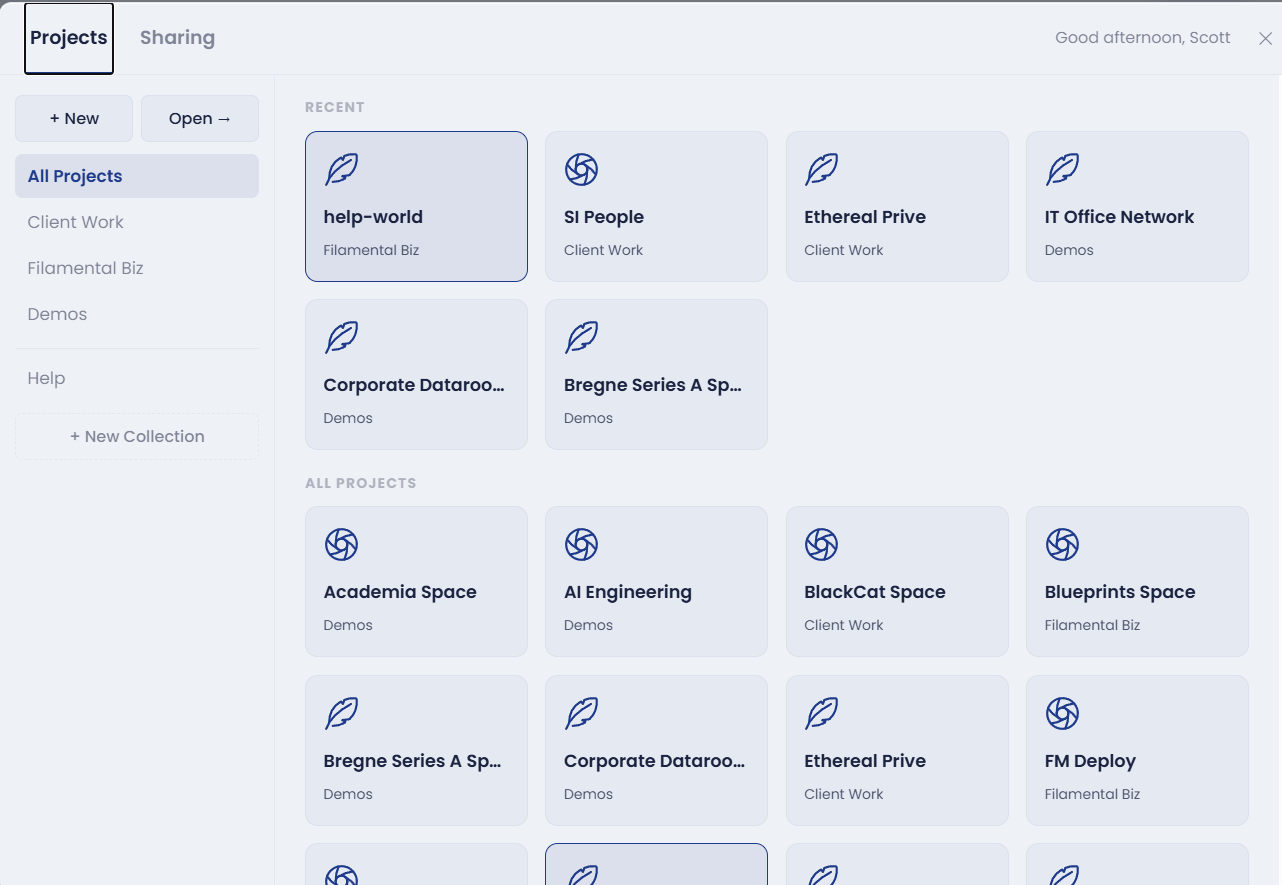
New / Open / Import…, at the top of the sidebar, is where every project starts. See New, Open or Import.
Recent shows the projects you've opened most lately, and All Projects lists every one by name. Click a card to open that project.
Collections group your projects down the left of the window. A collection is only a label: your folders stay wherever they are on disk.
Editing a project. Right-click a project and choose Edit. Nickname changes the name shown in Filamental, without touching the folder's own name. Location shows where the folder is, and the pencil beside it points the project at a different folder. Click Save changes when you're done.
A project whose folder has moved shows a warning sign (hover over the card and it says Folder not found), and won't open until you fix it. Right-click it, choose Edit, use the pencil under Location to find the folder where it now lives, and save.
Forget project, on the right-click menu and in the edit window, takes a project off the list and leaves its folder alone. See Forget, Remove or Delete a Project.
Help, at the foot of the collection list, holds the Help Playground and Help Videos, which opens our YouTube channel in your browser.
The Sharing tab lists the live Publisher links published from this computer, one card per project, with Copy and Revoke on each. Revoking takes the link down straight away, so anyone with the address sees a page that's no longer there. Publishing, pushing changes and passwords are covered in Sharing a Document.
Use it to switch between client projects in a click, to keep work, study and personal projects in their own collections, to reconnect a project after you've moved its folder, or to check which links you still have out there.
Still stuck? Email [email protected].